 DateStamps
How to Add the Original Date to iPhone Photos
An iPhone photo can have a capture date in its metadata without showing that date in the picture itself. A date stamp makes the date part of the visible image—useful when printing, sharing, or revisiting travel memories.
Choose a photo, check its capture date, pick a readable date style and position, and export a new copy. If the capture date is missing or wrong, correct it before stamping.
Choose the photo, not today’s date
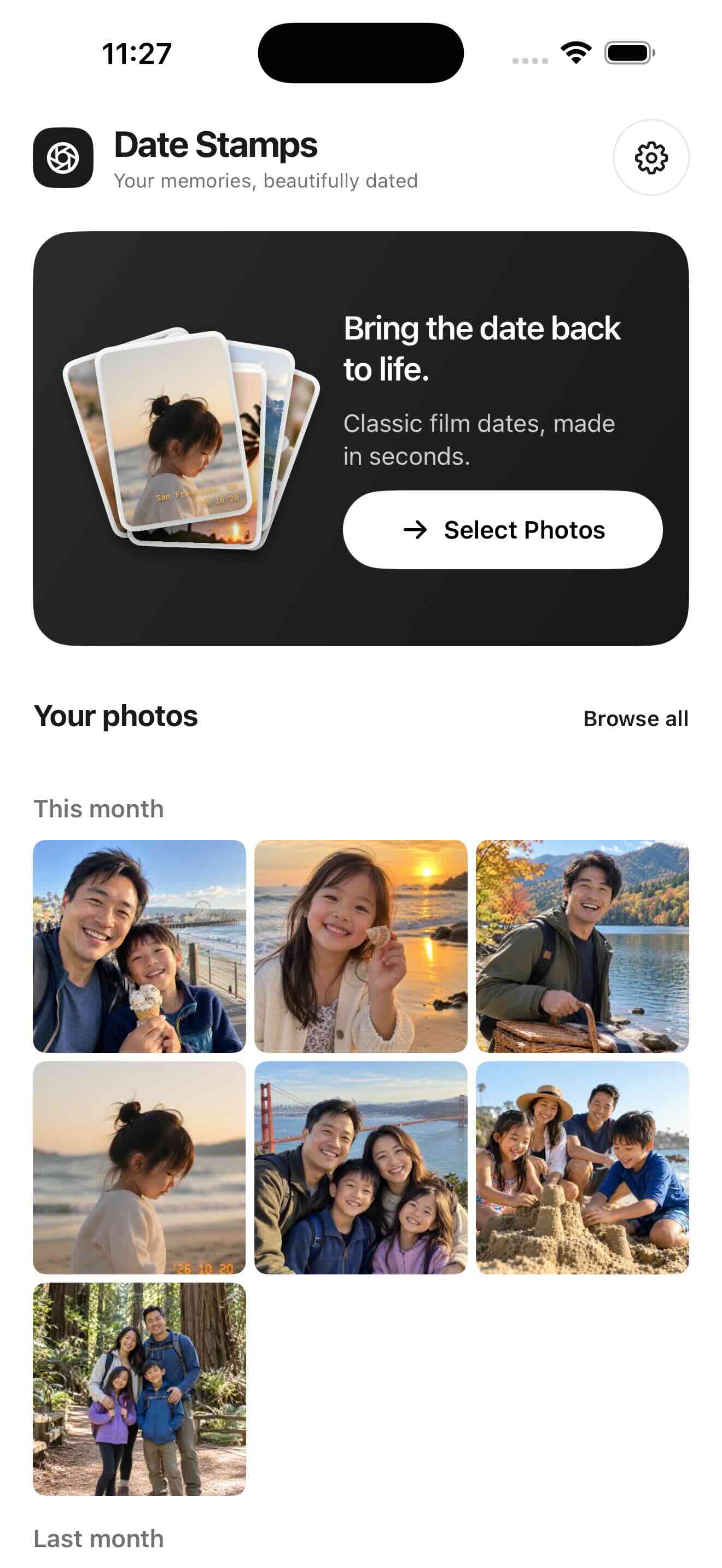
Open DateStamps and select an existing photo with the system picker. Its date may come from EXIF DateTimeOriginal or from the Apple Photos library. Screenshots and downloaded images may have no reliable original date.
Check the date carefully
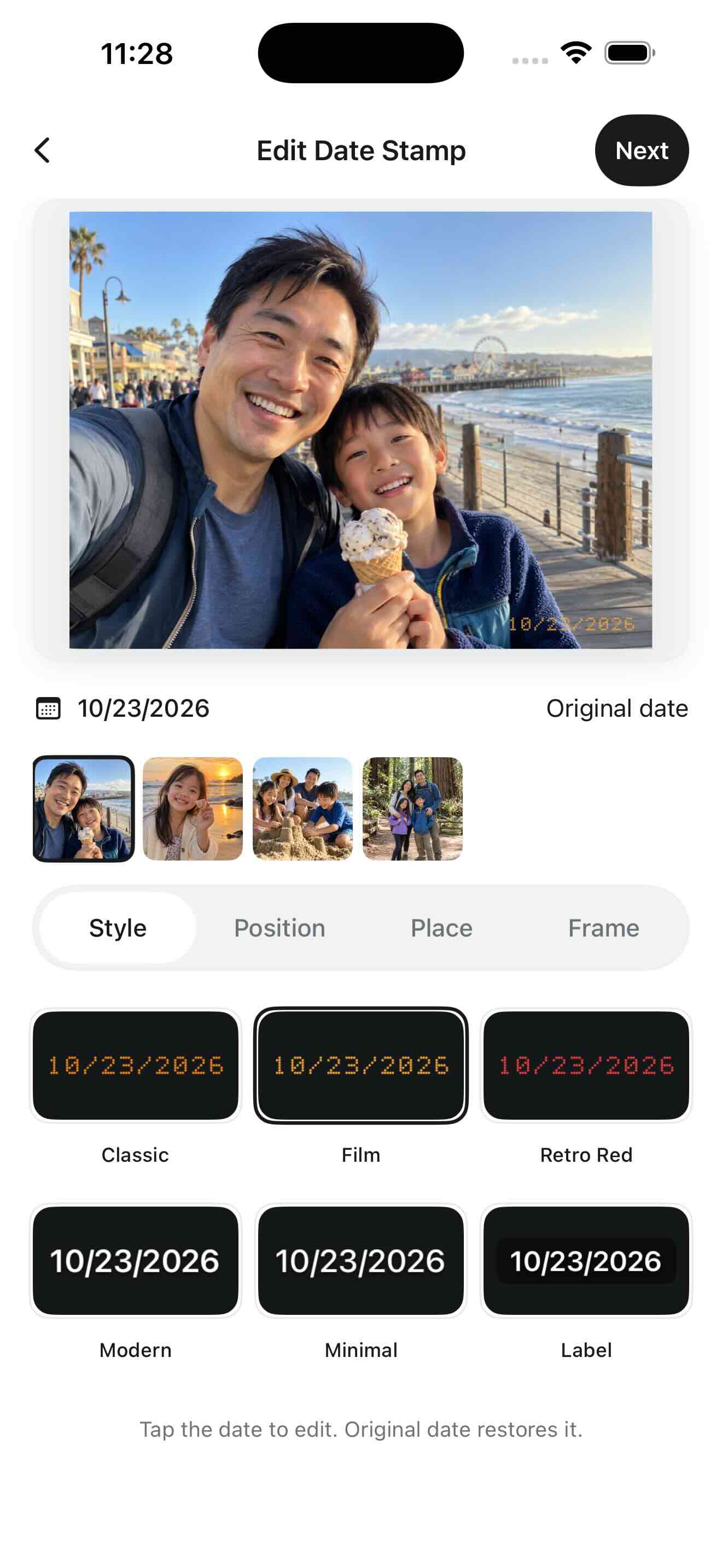
In the editor, tap the date to set or correct it for that photo. Original date restores its capture date when available. If you cannot confirm a date, remove that photo from the batch.
Choose how the date looks
Try warm orange film-camera digits, red film, or a restrained white date. Set the date format, size and one of the four corners. Keep the stamp away from faces or important details; preview a full photo rather than just a cropped thumbnail.
Save a new photo
Choose JPEG or PNG and save the dated image. Where Photos permissions allow, DateStamps can place new copies in its dedicated album. The default workflow leaves your original photo unchanged; editing an eligible original requires separate confirmation.
Does adding a date change the original iPhone photo?
By default, no. DateStamps writes a new image; eligible in-place edits are an advanced action with an explicit confirmation step.
Changing a photo’s date is not printing it
Adjust Date & Time in Apple Photos changes the library’s date information; it does not print a date onto the picture. DateStamps renders a visible date into a new image. Check the capture date first, then choose the format in Settings. A manual date change in the editor applies to that photo only.